
How to Print at Actual Size (100%)
Directions for Google Chrome Web Browser
Important:
To ensure your printable prints at the correct size, turn off Fit to Page or any automatic resizing options. If left on, your printable will shrink and may not fit properly.
Step 1 – Open the PDF
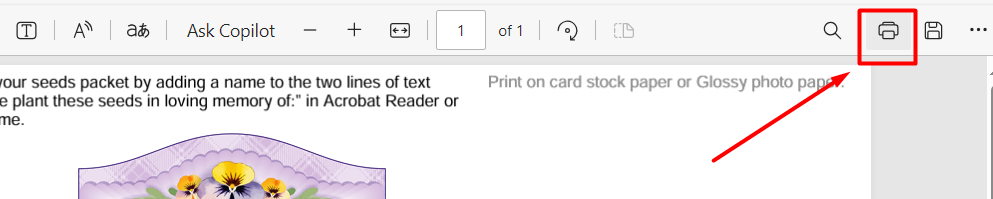
Open your PDF printable in Google Chrome. Click the Print icon in the top-right corner.
Step 2 – Click More Settings
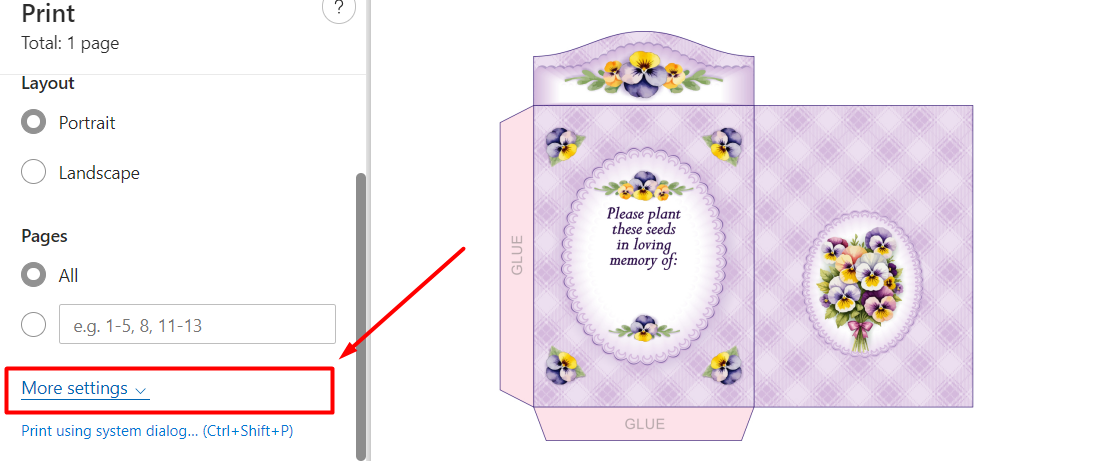
In the print window, scroll down and click More settings.
Step 3 – Set Scale to 100%
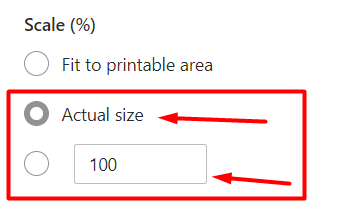
Find the Scale section. Change it to Custom and make sure it is set to 100%.
This ensures your printable prints at its exact designed size.
Step 4 – Click Print
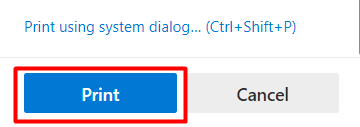
After confirming Scale is set to 100%, click Print.
Your printable will now print at the correct size.