How to Print at Actual Size (100%)
Directions for Microsoft Edge Browser
Important:
To ensure your printable prints at the correct size, turn off Fit to Page or any automatic resizing options. Set the scale to 100%.
Step 1 – Open the PDF
Open your PDF printable in Microsoft Edge. Click the Print icon in the top-right corner.

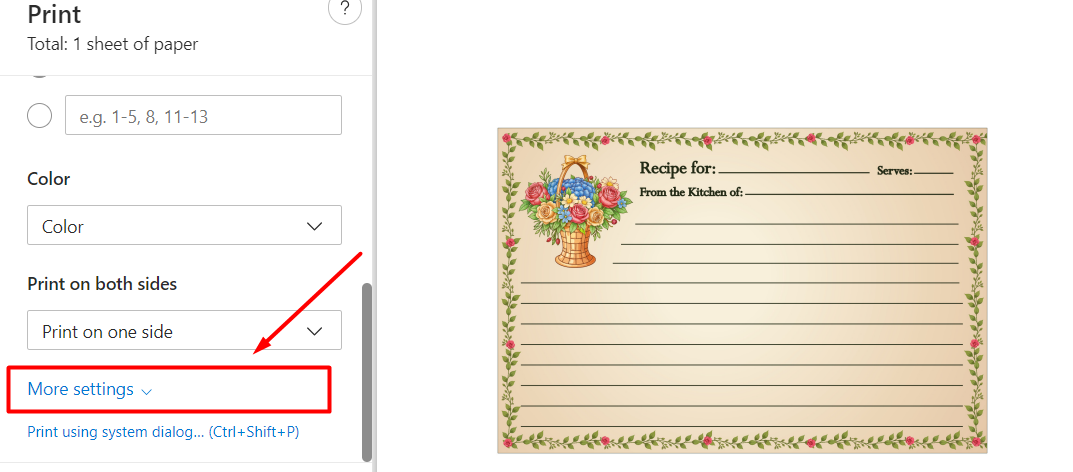
Step 2 – Click More Settings
In the print window, click More settings to expand additional options.
Step 3 – Set Scale to 100%
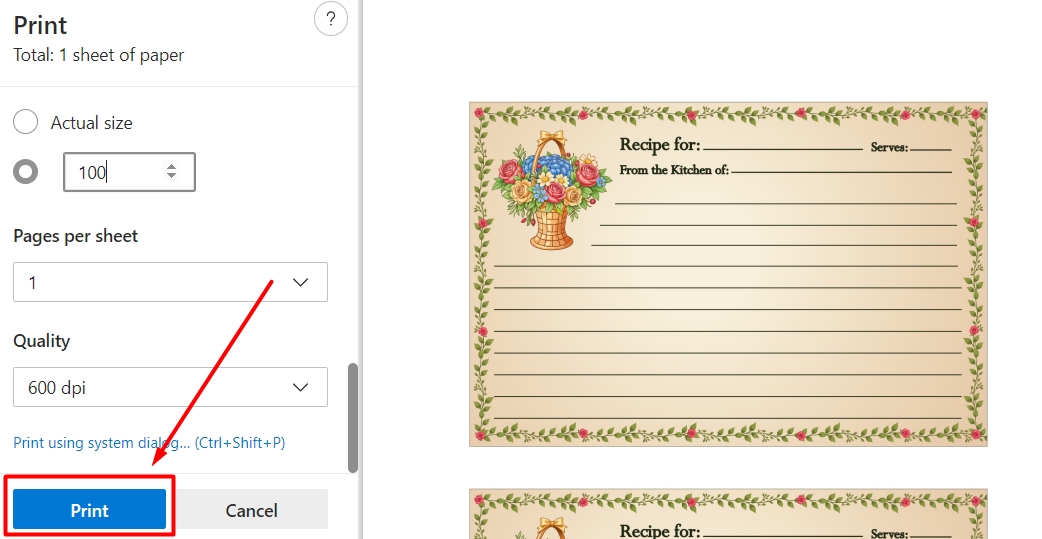
Find the Scale dropdown. Select Actual size or manually enter 100%.

Step 4 – Click Print
Click Print. Check the preview to make sure everything looks correct.
Your printable will now print at the correct size.